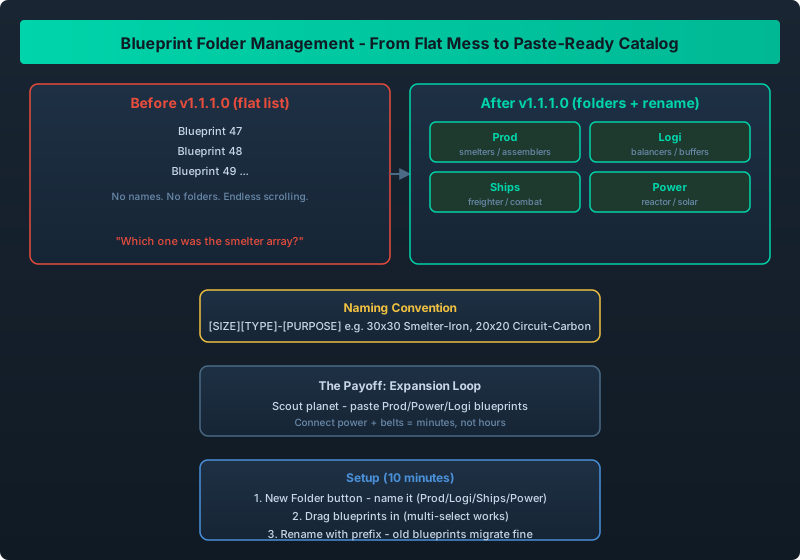
From saved blueprint to organized, paste-ready folder structure
Your Blueprint Library Was A Flat Mess. Not Anymore.
Before v1.1.1.0, every blueprint you saved went into one flat list. If you were anything like a normal Outworld Station player, that list was a wall of “Blueprint 47” entries with no way to tell which was the smelter array and which was the shipyard.
The July 22 patch fixed this with two features: blueprint folders and renaming. Combined with the v1.1 blueprint area expansion (30x30, 200 objects), this turns blueprints from a scrapbook into a real engineering library.
You can now create folders in the blueprint UI, drag blueprints into them, and rename anything. Set up a three-folder system (Production / Logistics / Ships) and rename every blueprint with a consistent prefix. It takes ten minutes and saves you hours of scrolling for the rest of your save.
How It Works in v1.1.1.0
Creating a Folder
- Open the blueprint manager (the same panel where you save and paste blueprints).
- Look for the “New Folder” button (added in v1.1.1.0).
- Name it – we recommend short, scannable names:
Prod,Logi,Ships,Power. - Drag blueprints into the folder. Multi-select works; select several and drag them together.
Renaming Blueprints
Select any blueprint and use the rename action (the pencil icon). A naming convention pays off fast:
[SIZE][TYPE]-[PURPOSE] e.g. "30x30 Smelter - Iron", "20x20 Circuit - Carbon Nano"
Why this matters: with 200-object 30x30 blueprints, the purpose in the name is the only way you will find anything later. The old flat list made this painful; folders + prefixes make it instant.
A Folder System That Scales
Based on how factories actually grow, here is a structure that holds up from hour 10 to hour 100:
| Folder | What goes in it |
|---|---|
| Prod | Smelter arrays, assembler lines, converter blocks, recipe-specific builds |
| Logi | Belt balancers, buffer blocks, storage racks, loading/unloading stations |
| Ships | Freighter hulls, prospector designs, combat ship templates |
| Power | Reactor blocks, solar fields, power routing |
| Utility | Defense turret packs, repair stations, extraction pads |
Keep a Scratch folder for experimental builds. Paste, test, and either promote the design to a proper folder or delete it. This keeps your main folders clean without making you paranoid about “wasting” a save slot.
What This Unlocks: A Paste-Ready Catalog
The real payoff of an organized blueprint library is the speedrun-style expansion loop:
- Scout a new planet (Multi-Planet Expansion Guide).
- Open the blueprint manager.
- Paste the
Prod - Smelter Ironblueprint, thePower - Reactorblueprint, and theLogi - Belt Balancerblueprint. - Connect power and belts. Done in minutes instead of hours.
This is exactly how the Speedrun Fast Start Route approach works, and v1.1.1.0 finally made the blueprint library usable enough to support it.
Recovery Notes
If you have an old save with a messy blueprint list, you do not need to redo anything:
- Existing blueprints migrate into the new UI automatically – the folder system is purely organizational.
- Blueprints saved before the patch remain fully functional (30x30 area, 200 objects).
- If a blueprint seems “missing,” check whether it is inside a folder you created accidentally during the migration; the v1.1.1.0 patch notes mention UI-title fixes that could have hidden folder labels.
Blueprint folders + renaming are the highest-leverage quality-of-life feature in v1.1.1.0. Spend ten minutes organizing and you will multiply the value of every blueprint you own. For new players, start the habit early: name everything, folder everything, and your mid-game expansion will feel like cheating. See also Blueprint Expansion Guide for the 30x30 area details.