You Are Clicking Everything and It Is Wasting Hours
Outworld Station has keyboard shortcuts for almost every action. Building placement, camera rotation, connector linking, blueprint copy, and inventory management all have hotkeys. But the game never shows them all in one place. The settings menu lists individual key bindings, but there is no single reference for the most useful shortcuts.
Knowing the hotkeys does not just save seconds. It changes how you build. When you can place a smelter, link a connector, and set an inventory pair without touching the mouse, your build speed triples.
The Short Version
The most important shortcuts: R to rotate buildings, B to open build menu, Ctrl+C/V for blueprints, Tab to switch inventory panel view, and holding Shift while placing buildings to place multiple without re-selecting. Learn these five and you will build 2x faster.
Building and Placement Shortcuts▼/span>
Essential Build Commands
| Key | Action | Why You Need It |
|---|---|---|
| B | Open build menu | Fastest way to start building |
| R | Rotate building | Align connectors to match your layout |
| Shift + Click | Place multiple of same building | Build 10 connectors without re-selecting |
| Ctrl+Z | Undo last placement | Saved me from wrong rotations 100 times |
| Delete | Remove selected building | Faster than right-click menu |
| Space | Toggle grid snap | Align buildings to tile grid |
The Shift-Click Power
Place one Smelter. Hold Shift, click 5 more times. Five Smelters placed in 5 seconds, all with the same rotation and all at ground level. Without Shift-click, you would open the build menu 5 times, select the building 5 times, and rotate each individually. That is 30 seconds per Smelter row instead of 5 seconds.
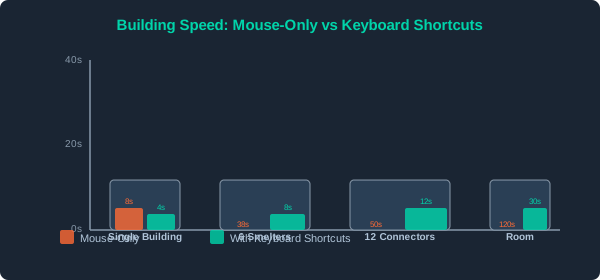
Building speed comparison: Mouse-only vs keyboard shortcuts. Shift-click alone saves 80% of placement time for multi-building layouts.
Camera and Navigation▼/span>
| Key/Action | Result | Notes |
|---|---|---|
| WASD | Pan camera | Standard RTS movement |
| Q / E | Rotate camera left/right | Q rotates counterclockwise, E clockwise |
| Mouse Wheel | Zoom in/out | Zoom out for overview, in for precise placement |
| Middle Mouse Drag | Orbit camera | Look around your station from any angle |
| Tab | Cycle through buildings | Selects next building of same type |
| F | Focus on selected building | Camera snaps to current selection |
| Home | Reset camera angle | Returns to default top-down view |
Camera Tricks
- Zoom out for routing - When planning connector routes, zoom way out. You see the full path and can plan around obstacles.
- Middle mouse for alignment - Drag to orbit and check if your storage rows are actually parallel. They never are the first time.
- Tab chain - Select a Smelter, press Tab repeatedly to inspect each Smelter in sequence. Great for finding the one that ran out of ore.
Connector and Inventory Shortcuts▼/span>
Linking and Pairing
| Key | Action | Why You Need It |
|---|---|---|
| Left Click (on connector port) | Start link | Click output port, then click input port |
| C | Clear current link selection | When you clicked the wrong output |
| Right Click | Cancel selection | Alternative to C |
| I | Open inventory panel of selected building | Quick check without double-clicking |
| P | Open pairing menu | Set up supply-demand pairs faster |
| Numpad +/- | Adjust priority up/down | Change building resource priority |
The Connector Linking Sequence
- Select building with connector port
- Click output port (highlighted green)
- Click target building input port (highlighted blue)
- Connector appears automatically
Mouse-free version:
- Tab to first building
- I to open inventory
- Click output port
- Tab to target building
- Click input port
Interface Shortcuts
| Key | Panel | Notes |
|---|---|---|
| Esc | Close any panel / Pause menu | Universal back button |
| M | Map / Overview | Shows your entire station sector |
| L | Research tree | Quick access to technology |
| J | Journal / Missions | Active objectives and contracts |
| H | Help / Tutorial hints | When you forget a mechanic |
| F1-F4 | Quick-select hotbar | Assign buildings to hotbar for instant placement |
| F5 | Quick save | Use before any major build |
| F8 | Screenshot | Captures current view to screenshot folder |
Mouse Gestures
| Gesture | Action |
|---|---|
| Left click | Select / Place |
| Right click | Deselect / Cancel |
| Left drag | Box select multiple buildings |
| Right drag | Pan camera (alternative to WASD) |
| Double left click on connector | Delete connector |
| Double left click on item | Move entire stack in inventory |
Customizing Key Bindings
The game allows full key rebinding. Open Settings -> Controls -> Key Bindings. Common changes:
| Change | Why Players Do It |
|---|---|
| Remap R to a mouse side button | Rotating 50 times per session hurts the keyboard hand |
| Swap Q and E | Some players prefer Q=clockwise |
| Bind F5 to a mouse button | Quick save without leaving mouse position |
| Increase scroll speed | Large stations need faster zoom transitions |