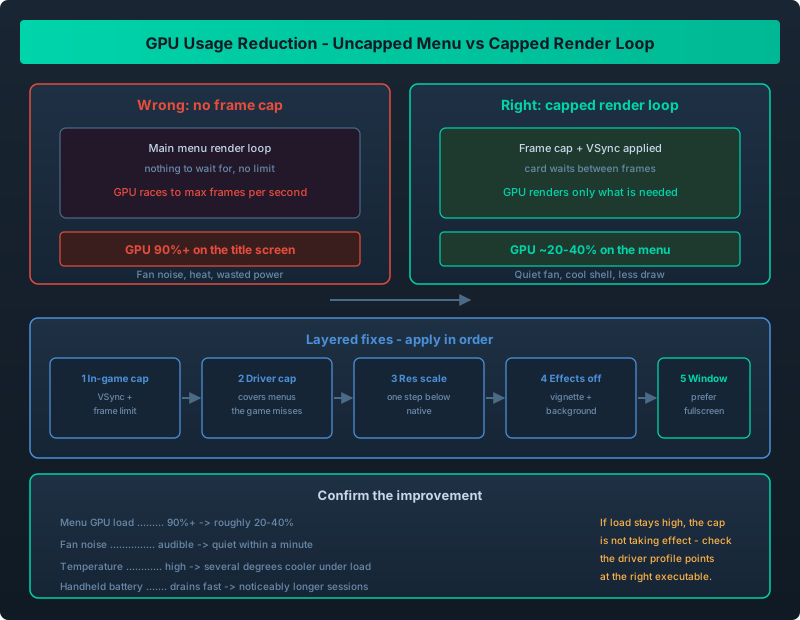
Why an uncapped menu pins your GPU, and the layered fixes that bring load, heat, and fan noise back down
Your Fans Spin Up Before You Even Load A Save
You launch Outworld Station, and before you place a single building the fans ramp. Alt-tab to a monitor and the GPU sits at 90 percent or higher - on the main menu. In game it is not much better: the room warms up, the fan noise is constant, and a handheld’s battery drains twice as fast as it should.
This is not your GPU being weak. It is the classic behavior of rendering the menu with no frame cap. This guide is about GPU load, thermals, fan noise, and power draw. If your problem is crashes, a black screen, or mid-game stutter, start with the performance and crash troubleshooting guide and come back once the game is stable.
An uncapped main menu will pin your GPU near maximum no matter how strong the card is. The fix is layered: enable a frame limit or VSync, cap frames at the driver level too, drop resolution scale a step, and turn off background and vignette effects. Do those and GPU load, fan noise, heat, and power draw all fall together, with no meaningful loss in a building game.
Why The Main Menu Is The Worst Offender
A menu scene is cheap to render and has nothing to wait for. With no frame cap, the render loop has no reason to slow down, so the GPU executes as many frames as it can. That is why people see 90 percent or higher on a title screen. It is a common engine-level oversight, and Outworld Station is far from alone in it.
The consequence: any measurement on the menu tells you about the lack of a cap, not about whether your hardware can run the game. Fix the cap and the number collapses.
| Scenario | GPU load without a cap | GPU load with a cap | What it means |
|---|---|---|---|
| Main menu, idle | 90 percent or more | 20 to 40 percent | Purely uncapped render loop |
| In game, small base | 70 to 90 percent | 40 to 60 percent | Cap gives real headroom |
| In game, late-game base | 95 percent or more | 60 to 80 percent | Genuine scene cost remains |
| Alt-tabbed to desktop | Drops sharply | Stays low | Confirms it is render-bound |
Fix 1: Enable VSync Or A Frame Limit In Game
This is the single biggest lever. In the game’s video settings, turn on VSync and set a frame limit that suits your display. A building game does not benefit from 200 FPS - a steady 60 is smoother to play than a spiky high average, and it costs a fraction of the power.
- VSync on removes tearing and stops the card racing ahead of the display.
- Add an in-game frame limit (60 for a 60Hz monitor, more for 120Hz or higher).
- Pick a cap your rig holds comfortably in a late-game base, not one it only hits on the menu.
If an in-game cap is missing or ignored on the menu, the driver cap below is the failsafe.
Fix 2: A Driver-Level Frame Cap
A driver cap applies everywhere, including menus the game does not cap itself. In your GPU control panel, add a profile for the game executable and set the maximum frame rate.
- Set a global or per-game cap at your monitor refresh rate, or a little below.
- Enable VSync at the driver level as a second layer.
- Leave adaptive or low-latency modes alone if they make the game hitch; a plain cap is more reliable.
A driver cap is why the menu stops pinning the card even when the game forgets to cap it. Cap at both layers.
Fix 3: Reduce Resolution Scale
If load is still high once capped, resolution scale is your next cheapest win. Rendering at 90 or 85 percent of native cuts the pixels the GPU fills, and in a top-down builder the difference is barely noticeable. Drop one step from native, check load and readability, and on a handheld one step down often separates comfort from discomfort.
Fix 4: Turn Off Background And Vignette Effects
Post-processing costs GPU time every frame for no gameplay value. Turn off vignette and any cinematic background treatment, disable heavy ambient or particle effects you do not need, and re-check load after each change to see which ones actually cost anything.
Fix 5: Windowed Versus Fullscreen
Fullscreen exclusive is usually lighter because it avoids compositor work. Borderless windowed is convenient for alt-tabbing but can add overhead. Test both, but if heat and fan noise are the complaint, fullscreen is the safer default. Once the game runs cool, the controls and hotkeys guide gets you moving faster through the interface.
Fix 6: Manage The Late-Game Base Itself
Capping frames fixes the menu and trims play load, but a base with hundreds of buildings still costs real GPU time. The highest-leverage structural wins: consolidate sprawling belt and pipe runs, since long animated lines are drawn every frame; turn off decorative builds you no longer look at; and group production into compact blocks. Bigger, denser stations cost more to render, which is a reason the station layout guide pays off beyond logistics.
How To Confirm You Improved It
Measure the same way before and after so the numbers are comparable.
| Before | Setting change | After |
|---|---|---|
| GPU 90 percent on menu | Driver cap + VSync | Should fall to roughly 20 to 40 percent |
| Fan audible at idle menu | Frame cap in game | Fan should quiet within a minute |
| High case or shell temperature | Resolution scale down one step | Several degrees cooler under load |
| Battery drains fast on handheld | All of the above | Noticeably longer play sessions |
Watch a monitoring overlay on the menu for a full minute. If load stays high, your cap is not taking effect.
If your GPU pins near maximum on the Outworld Station main menu, that is an uncapped render loop, not a hardware limit. Cap frames in game and at the driver level, drop resolution scale one step, disable background and vignette effects, and prefer fullscreen. Keep your late-game base compact so play-time load stays manageable. Fan noise, heat, and power draw all drop, with no real cost to a game that does not need high frame rates. If a crash or freeze does show up instead of high load, switch to the troubleshooting route and keep a recent save via the save backup guide.