Whitelist vs exclusion filter: one line change stops contamination forever
The Filter Type You Were Missing
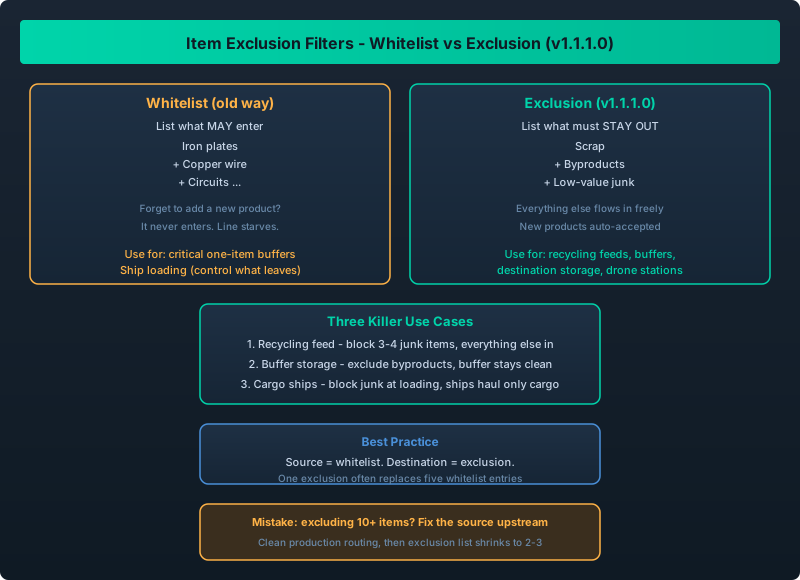
Before v1.1.1.0, filters were whitelists only: you listed exactly what could enter a storage unit or load onto a drone. That worked, but it forced you to enumerate everything – and every time you added a new product, you had to remember to update every filter on the line.
The July 22 patch added exclusion filters: you list what must stay out, and everything else is allowed in. This is the “keep junk out” tool, and it fixes three classic Outworld Station problems.
Exclusion filters let you block specific items instead of whitelisting everything else. Use them for: (1) keeping trash out of recycling feeds, (2) protecting buffer storage from contamination, (3) stopping cargo ships from hauling junk between planets. One exclusion often replaces five whitelist entries.
The Three Killer Use Cases
1. Recycling Feed Protection
The Recycling & Deconstruction Guide teaches you to feed salvaged materials back into production. The risk: your recycler feed gets contaminated with items you did not want recycled (or items that should go elsewhere).
With exclusion filters: block the 3-4 items you do not want in that feed. Everything else flows in. No more whitelist updates every time you unlock a new material.
2. Buffer Storage That Stays Clean
Buffers (see Buffer Storage Strategy) are supposed to hold one specific item for burst demand. A whitelist filter achieves this, but any forgotten item sneaks in and contaminates the buffer.
With exclusion filters: exclude the items that commonly contaminate that line (e.g., byproducts). The buffer only ever holds the intended material.
3. Cargo Ships That Stop Hauling Junk
This is the big one. Interplanetary freighters and cargo drones will happily haul any item to a destination that accepts it. If you have a storage rack at the destination with a loose filter, your ship wastes round trips carrying scrap.
With exclusion filters: block the junk list (scrap, byproducts, low-value items) at the loading station. Your ships haul only what the destination actually needs. Pair with the Freighter Overview Guide to verify the fix in the fleet dashboard.
How to Set It Up
- Open the storage unit, drone loading station, or logistics building.
- Switch the filter mode from Whitelist to Exclusion (the toggle added in v1.1.1.0).
- Add the items you want to block.
- Confirm – everything not on the block list is now accepted.
Use exclusion mode on destination storage and whitelist mode on source loading stations. Source whitelists control what ships, destination exclusions control what gets accepted. Together they give you precise control with minimal maintenance.
Exclusion vs Whitelist: When To Use Which
| Situation | Use |
|---|---|
| “Only iron plates may enter” | Whitelist |
| “Everything except scrap and byproducts” | Exclusion |
| Destination with many legitimate inputs | Exclusion (fewer entries to maintain) |
| Critical one-item buffer | Whitelist (stricter) |
| Ship loading station | Whitelist (you control what leaves) |
A Common Mistake
Do not use exclusion filters as a substitute for cleaning up your production lines. If you find yourself excluding 10+ items from a station, the real problem is likely upstream: you are producing items you do not route properly. Fix the source (see Resource Processing Tree) and your exclusion list shrinks to 2-3 items.
Exclusion filters are the v1.1.1.0 quality-of-life feature that quietly unclogs your whole logistics network. One exclusion can replace five whitelist entries, and it is the missing tool for keeping recycling feeds, buffers, and cargo routes clean. If you only adopt one new feature from this patch, make it this one.