Your 40-Hour Station Disappeared in One Load Screen
You opened Outworld Station. The loading bar got to 95%. Then it stopped. The game did not crash, it just sat there. You force-closed, reloaded. Now the save says “Corrupted file.”
Early access games break. Saves get corrupted. Updates introduce bugs. I lost a Station Level 11 save in April 2025 when a patch changed the gas processing formula and my save could not parse the new data format. Forty hours gone.
The fix: backups. A 30-second habit that saves you from replaying weeks of progress.
The Short Version
Your saves are in %APPDATA%/OutworldStation/Saves/. Copy the entire save folder to a backup location. Do this after every major session (3+ hours). The game keeps 5 auto-save slots. Do not rely on them alone.
Where Saves Are Stored and How They Work▼/span>
Save File Locations
| Platform | Save Path |
|---|---|
| Windows (Steam) | %APPDATA%/OutworldStation/Saves/ |
| Windows (Game Pass) | %LOCALAPPDATA%/Packages/…/SystemAppData/wgs/ |
| Steam Cloud | Synced automatically, limited to ~100 MB |
What Each Save File Contains
| File | Content | Size |
|---|---|---|
| world.save | Main game state (buildings, resources, research) | 5-50 MB |
| world.blueprint | Blueprint data for copy-paste | 1-5 MB |
| settings.cfg | Game settings (graphics, controls) | < 1 MB |
| save_meta.xml | Metadata (timestamp, playtime, version) | < 1 MB |
Auto-Save Slots
The game maintains 5 rotating auto-saves: auto_save_0 through auto_save_4. When slot 4 fills, the oldest save is overwritten. This means a corrupted save can spread to all 5 slots within 5 loading cycles if you keep playing.
The 5-Slot Trap
If you load a corrupted save, quit immediately. Do not save or auto-save. A corrupted save that loads (but with errors) can corrupt all 5 auto-save slots if the game writes a new auto-save over them. Quit first, then restore from manual backup.
Backup Routine (30 Seconds Per Session)▼/span>
Minimum Backup Strategy
After each session where you made significant progress:
- Close Outworld Station
- Open File Explorer
- Navigate to %APPDATA%/OutworldStation/Saves/
- Copy the entire save folder
- Paste to a backup location (Desktop/backup/ or cloud drive)
Total time: 30 seconds
Advanced Backup Strategy
| Backup Type | Frequency | Location | Retention |
|---|---|---|---|
| Session backup | After every 3+ hour session | Local HDD/Desktop | Keep last 10 |
| Weekly archive | Once per week | Cloud (Google Drive, OneDrive) | Keep last 4 |
| Pre-update backup | Before every game update | External backup | Keep until next update |
Automated Backup (PowerShell Script)
Save the following as “backup_outworld.ps1” and run it after each session:
$source = "$env:APPDATA/OutworldStation/Saves"
$date = Get-Date -Format "yyyy-MM-dd"
$dest = "$env:USERPROFILE/Desktop/OutworldBackups/Save_$date"
Copy-Item -Path $source -Destination $dest -Recurse -Force
Write-Host "Backup created: $dest"
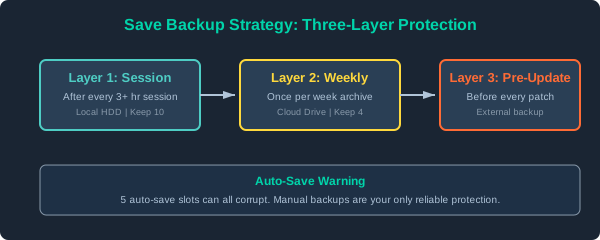
Save backup strategy: Session -> Local -> Cloud. Three-layer protection prevents total data loss.
Recovering a Corrupted Save
If your save will not load, try these in order:
Method 1: Use an Auto-Save
- Navigate to %APPDATA%/OutworldStation/Saves/[worldname]/
- Look for auto_save files (auto_save_0 through auto_save_4)
- Copy the newest auto_save file
- Rename it to world.save (overwrite the corrupted version)
- Launch the game
Method 2: Restore from Backup
- Close the game
- Navigate to your backup folder
- Copy the entire world save folder
- Paste into %APPDATA%/OutworldStation/Saves/, replacing the corrupted folder
- Launch the game
Method 3: Steam Cloud Recovery
- Right-click Outworld Station in Steam
- Properties -> General -> Steam Cloud
- Disable Steam Cloud sync
- Delete local save files
- Re-enable Steam Cloud sync
- Launch game (Steam downloads cloud saves)
If All Methods Fail
Check the Outworld Station Discord support channel. Developers have released save-repair tools during major patches. Some community members in the Discord have manual hex-edit repair techniques for specific corruption types.
Save Corruption Prevention Checklist
- Manual backup after every 3+ hour session
- Steam Cloud sync enabled (secondary protection)
- Keep 10+ GB free on the save drive
- Do NOT load old saves after a game update (wait for patch notes first)
- If game crashes, restart before playing again
- Disable automatic Windows updates during play sessions