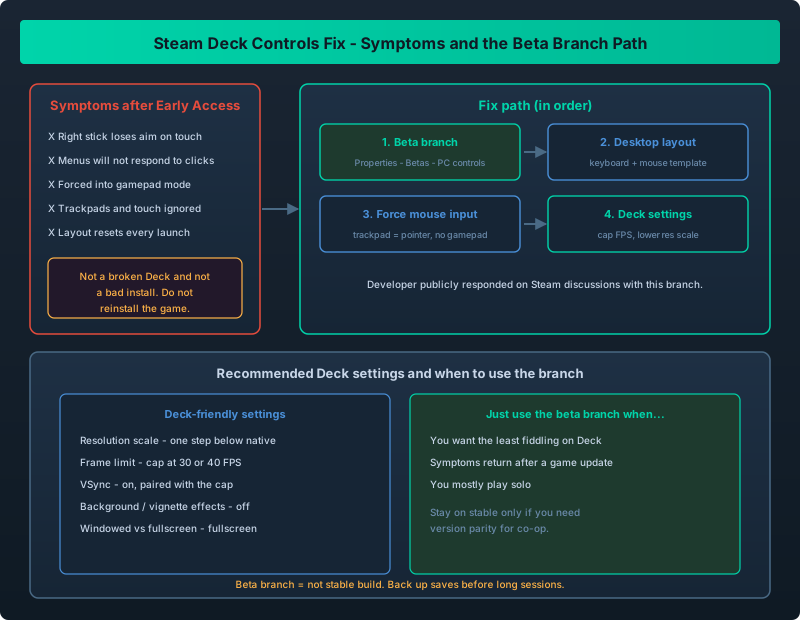
Steam Deck control symptoms and the fix path, from Steam properties to the PC-controls beta branch
Your Deck Controls Worked Yesterday. Then Early Access Ended.
Here is the exact pattern people keep reporting. Outworld Station ran fine on Steam Deck during Early Access. After the game left Early Access, the controls broke. The right stick stops aiming the moment you touch it, so building placement spins or refuses to track. Menus will not accept input - the cursor is there but clicks do not land, or the game has forced itself into gamepad mode and ignores the trackpads. You cannot get back to a layout that works.
You are not doing anything wrong, and this is not a hardware fault. It is a known input regression, and the developer responded publicly on the Steam discussions by shipping a dedicated “Steam Deck PC controls” beta branch. This guide walks the whole path: the exact symptoms, the beta-branch opt-in, forcing desktop-style input, and when to just live on the beta.
If your Deck controls are broken after Early Access, stop fiddling with Steam Input first and go straight to the beta branch. In Steam, open Outworld Station’s Properties, pick the Betas tab, and opt into the “Steam Deck PC controls” branch. Then set the community or desktop-style layout so the game reads keyboard and mouse. That combination is what the developer provided, and it resolves the right-stick and menu symptoms for most players.
The Exact Symptoms
Match against this list before you change anything, so you fix the real problem instead of guessing:
| Symptom | What it looks like | Likely cause |
|---|---|---|
| Right stick loses aim on touch | Camera or placement jerks and stops tracking the stick | Gamepad pointer handling conflicting with the stick |
| Menus will not respond | Cursor visible but clicks and selects do nothing | Game forced into gamepad mode, ignoring trackpad input |
| Stuck in gamepad mode | Trackpads and touch screen do not register | Input mode not switching to desktop style |
| Touch screen ignored | Tapping the screen does nothing | Gamepad mode overriding touch |
| Layout reset on launch | Your chosen layout reverts every session | Steam Input template not saved to the game |
If two or more of these match, you are hitting the post-Early-Access input bug, not a corrupted install. There is no reason to reinstall the game.
Step 1: Opt Into The PC Controls Beta Branch
The developer’s response to the Deck complaints was a beta branch for PC-style controls. Steam makes it a two-minute job:
- Open your Steam Library and find Outworld Station.
- Right-click the game (or use the gear icon) and choose Properties.
- Go to the Betas tab.
- In the beta participation dropdown, select the Steam Deck PC controls branch.
- Close the window and let Steam download the branch update.
Once on the branch, launch the game and check whether the right stick and menus behave. In many reports this alone clears the worst symptoms. Keep an eye on the v1.1.1.0 patch notes guide, since beta branches update separately from the stable build.
A beta branch is not the stable build. You may see minor regressions, and your saves are still normal saves - keep periodic backups, and read the save backup guide if you want a safety net before a long session.
Step 2: Switch To A Desktop / PC Control Layout
Being on the branch is half the fix. The other half is telling Steam Input to present keyboard-and-mouse rather than a controller, so the game reads input the way it does on a desktop.
- With the game selected, open the controller configuration for Outworld Station (the controller icon on the game page, or Steam Settings, then Controller).
- Choose a desktop-style or keyboard-and-mouse template rather than the default gamepad template. Community templates labelled for keyboard and mouse work well.
- Apply the layout and save it as the game’s layout, not a global one, so it survives relaunch.
This is the step that stops the game forcing itself into gamepad mode, the root of the unresponsive-menu symptom. If you are still learning the build controls, the controls and hotkeys guide helps you map your template to the actions you actually use.
Step 3: Force Keyboard And Mouse Input
If menus still will not respond after the layout change, force the input:
- In the Steam Input layout, bind the trackpad and touch screen to a mouse pointer, and the triggers and buttons to left and right click.
- Make sure no button maps to a gamepad action that pulls you back into gamepad mode.
- Test in the pause or build menu first - that is where the symptom shows fastest.
Not elegant, but deterministic: you hand the game exactly the input a desktop session would send.
Recommended Deck-Friendly Settings
Input is only half of a good Deck session. These settings cut the load on the handheld and keep it stable:
| Setting | Recommendation | Why |
|---|---|---|
| Resolution scale | Drop one step below native | Biggest single win for frame rate on Deck |
| Frame limit | Cap to 30 or 40 FPS | Steady frames beat spiky ones on a handheld |
| VSync | On, paired with the cap | Reduces tearing and keeps the GPU from racing |
| Background and vignette effects | Off | Wasted GPU cost on a small screen |
| Windowed vs fullscreen | Fullscreen | Simple ordering and less compositor overhead |
These mirror the general GPU-load advice in the GPU usage reduction guide; the same uncapped-menu problem that pins desktop GPUs also drains the Deck’s battery.
When To Just Use The Beta Branch
The beta branch is the intended fix, and there is no shame in treating it as the answer. Use it as your default when you are on Steam Deck and want the least fiddling, when the symptoms return after a game update, or when you mostly play solo and do not need version parity with a desktop friend. Stay on stable only if you are testing the stable input path for a bug report or matching versions for co-op - see the co-op and multiplayer guide for why that matters.
The post-Early-Access Deck breakage is a real, developer-acknowledged input regression, not your fault and not a broken Deck. The reliable fix is the Steam Deck PC controls beta branch plus a desktop-style keyboard-and-mouse layout, forcing mouse input if menus still ignore you. Cap your frame rate and drop resolution scale for the rest of the session. Reach for the beta branch first next time an update breaks your controls.